
Image Optimization
WebP Cloud will try to convert all your images to WebP/AVIF image and send the optimized image to your visitor (if the WebP/AVIF image is smaller), besides, by removing image metadata will make the image even smaller, and potentially reduce the risk of EXIF privacy leak.
| Original (1.73MB, PNG) | Optimized (1.21MB, WebP) |
|---|---|
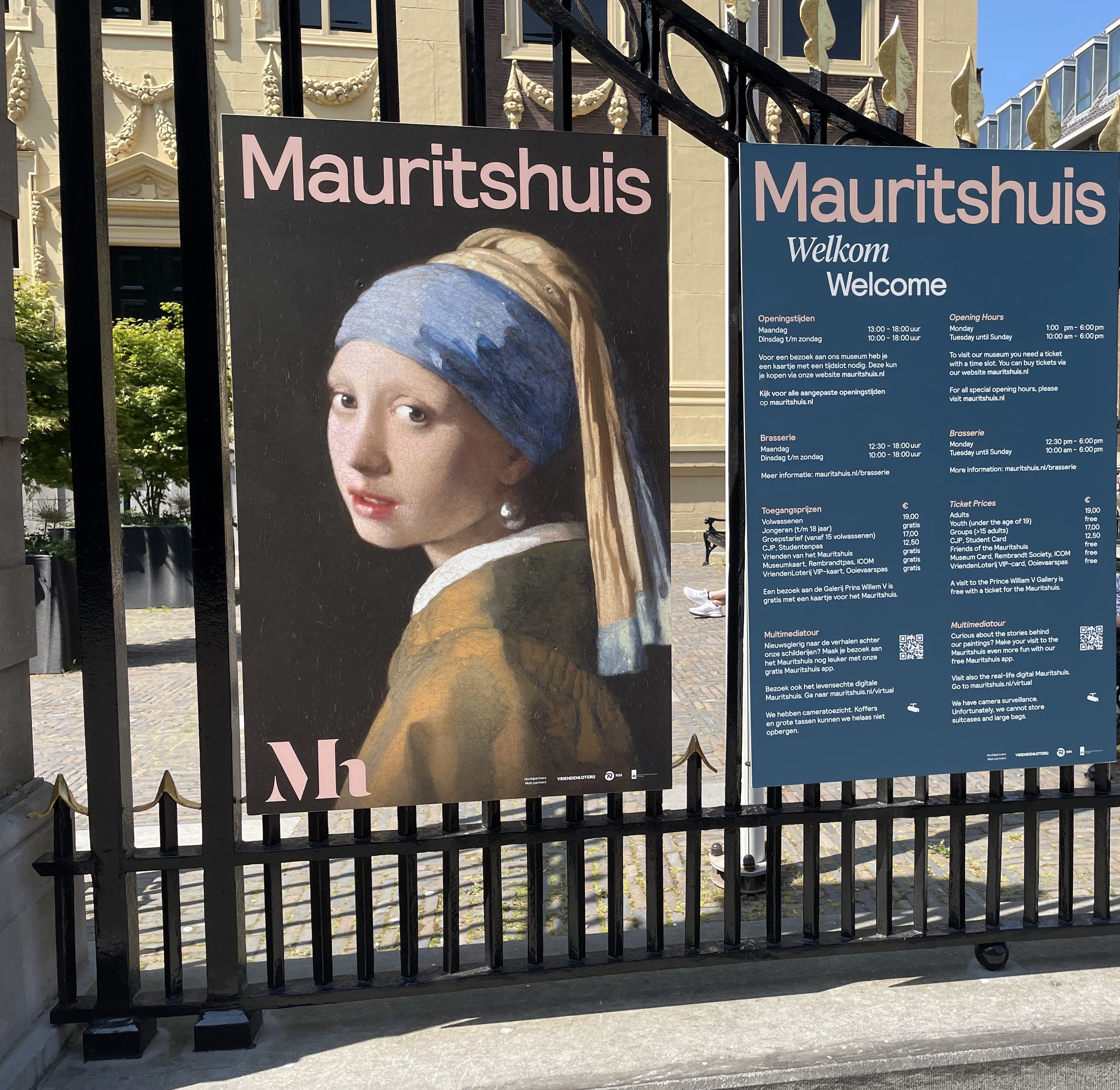 |  |
https://webp.se/images/docs/demo.jpg | https://559a238.webp.ee/images/demo.jpg |
You can adjust Quality level from 10% to 100% on Proxy edit page, the higher the percent, the higher the image quality will be, and with Quality set to 100% means you want to use lossless convert.
Please note that if you've changed Quality Level in dashboard, we'll do a Cache Purge for your as is required to take effect.
Image Resize
Currently, we support the following params:
- height
- width
- max_width
- max_height
in px.
height and width
If you set both width and height, your image will be cropped using attention crop to maintain your width-height ratio, like this:
attention crop: look for features likely to draw human attention
| Optimized (1.21MB, WebP) | With width (32.57KB, WebP) | With both width and height(will crop) (26.61KB, WebP) |
|---|---|---|
|  |  |
https://559a238.webp.ee/images/demo.jpg | https://559a238.webp.ee/images/demo.jpg?width=200 | https://559a238.webp.ee/images/demo.jpg?width=200&height=100 |
Animated images (GIF) are also supported
Original Image
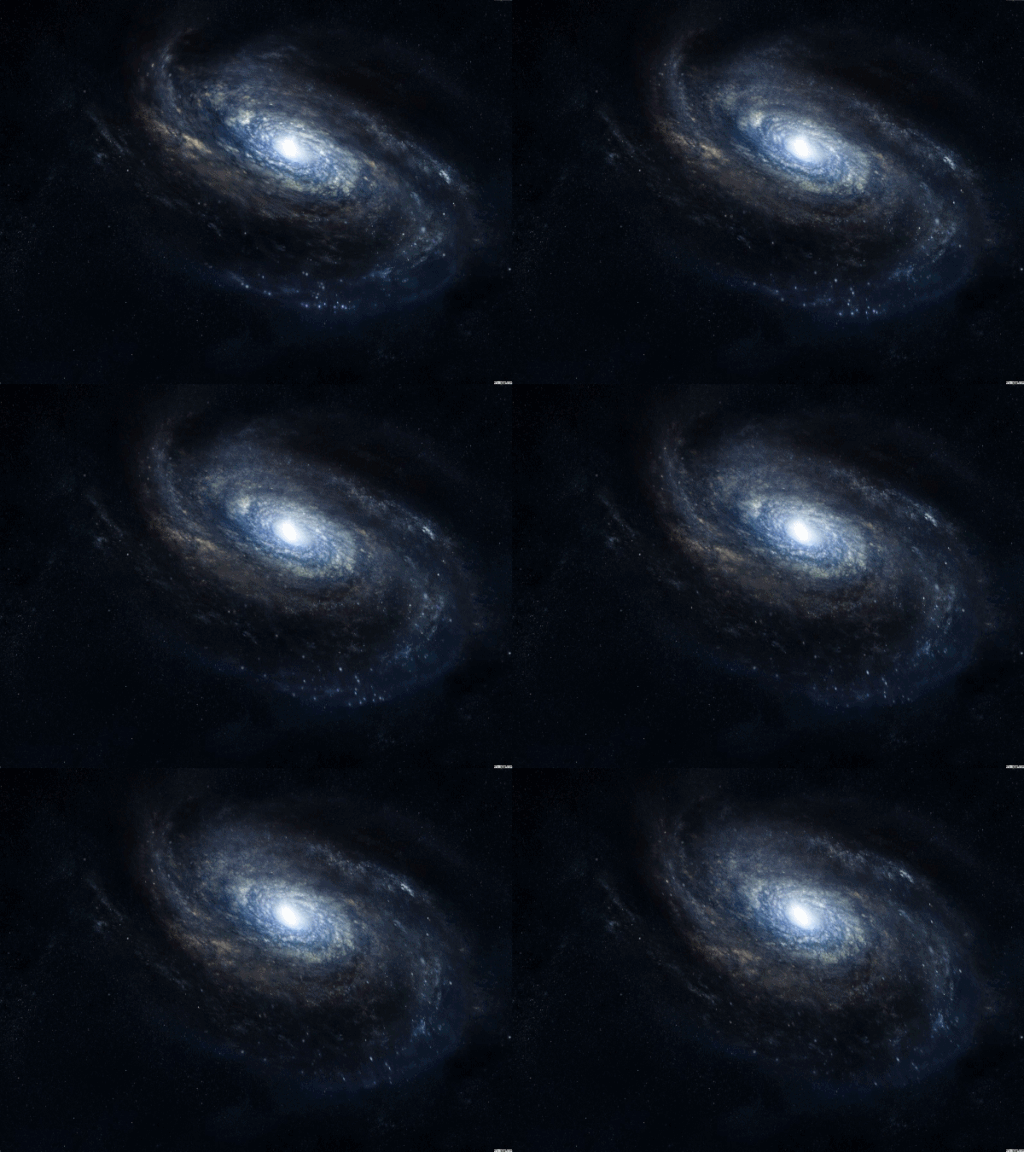
https://webp.se/images/docs/galaxy.gifWith WebP Cloud

https://559a238.webp.ee/images/galaxy.gifWith WebP Cloud and ?width=200

https://559a238.webp.ee/images/galaxy.gif?width=200max_height and max_width
These two parameters are used to limit the maximum size of the image and will limit large-size images within these two dimensions while keeping small-size images unchanged.
For example, we have a 500x500px image called big.jpg. When you visit /big.jpg?max_height=200&max_width=100, since max_width is smaller, the image will be scaled to 100x100px.
If we have an 80x80px image called small.jpg, when you visit /small.jpg?max_height=200&max_width=100, since the length and width of the image are within range, this image will not be processed.
Image Adaptive Resize
In the Dashboard, each Proxy offers an Adaptive Resize feature. Users can currently configure the maximum resolution for two types of devices (desktop and mobile). The default values are 1600px for desktop and 800px for mobile.
After configuring and enabling this feature, we will determine whether the visitor is using a desktop or mobile device based on the User Agent header of browser. Any image on the website wider than the set value for the respective device environment will be automatically resized proportionally to the set width, further reducing the image size and speeding up rendering.
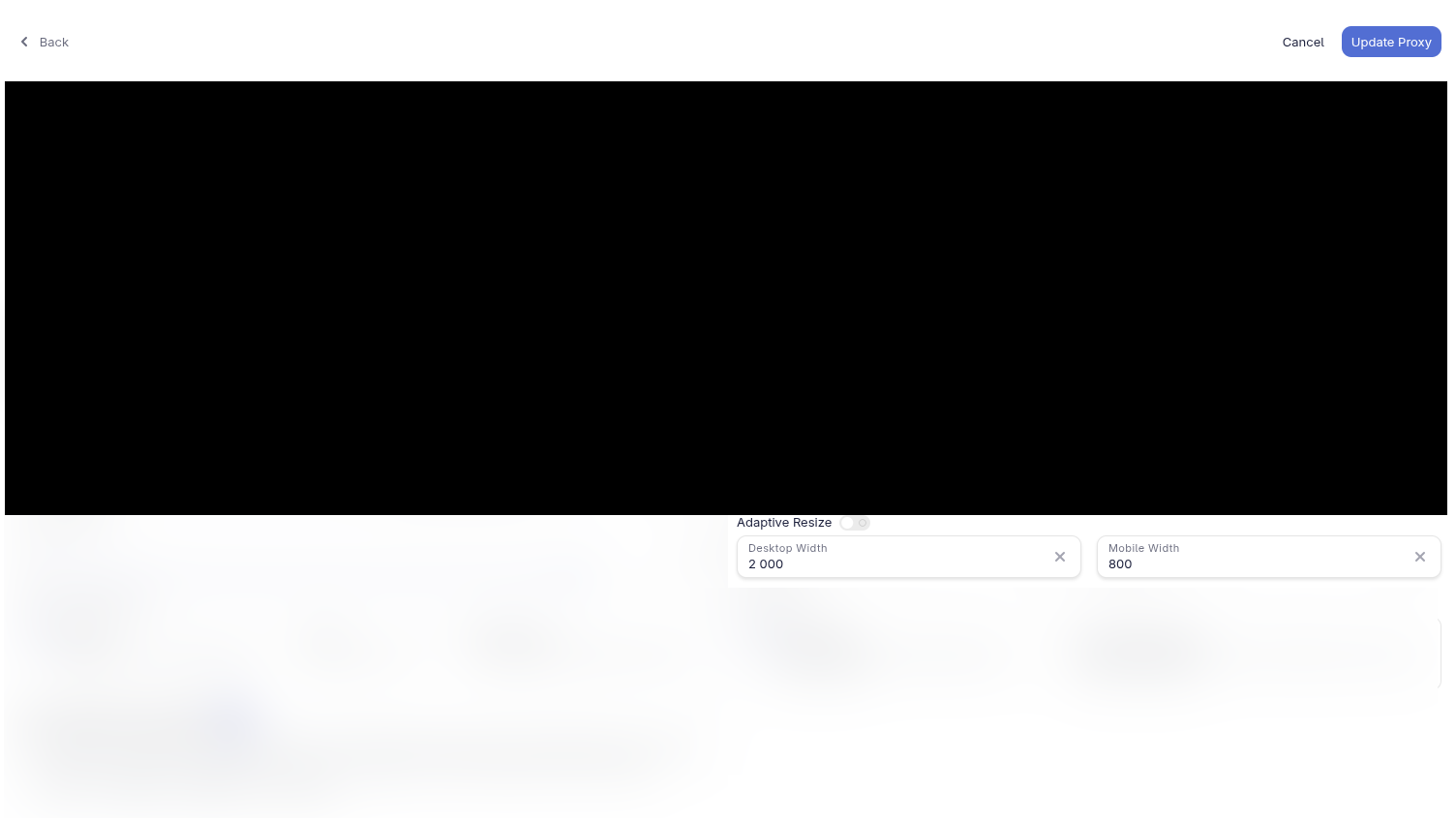
Example:
- Desktop Width set to 1600
- Mobile Width set to 800
A user using desktop browser made a request to image with 3200x1000px, WebP Cloud will automatically resize that image to 1600x500px (because Desktop Width is 1600px) and render to user.
A user using desktop browser made a request to image with 500x900px, WebP Cloud will not process this image because it's width is smaller than setting value.
Metadata
- meta
Will return original image's metadata, available options are: full
Example: https://559a238.webp.ee/images/demo.jpg?meta=full will return the following data:

{
  "width": 3104,
  "height": 3022,
  "size": 75405,
  "average_color": "#474747",
  "num_pages": 1,
  "colorspace": "sRGB",
  "blurhash": "L0Eyb[j[fQj[j[fQfQfQfQfQfQfQ"
}
num_pages will be greater than 1 when image contains multiple frames, for example: https://559a238.webp.ee/images/galaxy.gif?meta=full will return:

{
  "width": 512,
  "height": 384,
  "size": 2871,
  "average_color": "#141a24",
  "num_pages": 75,
  "colorspace": "sRGB",
  "blurhash": "L0Eyb[t7fQt7xufQfQfQfQfQfQfQ"
}
Flip
- flip
Available options are: v (vertical), h (horizontal), b (Both vertical and horizontal)
| Optimized | Flip vertical | Flip horizontal | Flip Both |
|---|---|---|---|
|  |  |  |
https://559a238.webp.ee/images/demo.jpg | https://559a238.webp.ee/images/demo.jpg?flip=v | https://559a238.webp.ee/images/demo.jpg?flip=h | https://559a238.webp.ee/images/demo.jpg?flip=b |
Quality
- quality
Override quality set in dashboard, available quality range from 10 ~ 100 (100 means lossless convert)
| Optimized | Quality 10 | Quality 80 | Quality 100 |
|---|---|---|---|
|  |  |  |
https://559a238.webp.ee/images/demo.jpg | https://559a238.webp.ee/images/demo.jpg?quality=10 | https://559a238.webp.ee/images/demo.jpg?quality=80 | https://559a238.webp.ee/images/demo.jpg?quality=100 |
Blur
- blur
Available blur range from 10 ~ 100
| Optimized | Blur 10 | Blur 80 | Blur 100 |
|---|---|---|---|
|  |  |  |
https://559a238.webp.ee/images/demo.jpg | https://559a238.webp.ee/images/demo.jpg?blur=10 | https://559a238.webp.ee/images/demo.jpg?blur=80 | https://559a238.webp.ee/images/demo.jpg?blur=100 |
Sharpen
- sharpen
Sharpen the image, available sharpen range from 1 ~ 10
| Optimized | Sharpen 5 | Sharpen 9 |
|---|---|---|
|  |  |
https://559a238.webp.ee/images/demo.jpg | https://559a238.webp.ee/images/demo.jpg?sharpen=5 | https://559a238.webp.ee/images/demo.jpg?sharpen=9 |
Rotate
- rotate
Available rotate angle range from 0 ~ 360, however if angle is not 90, 180, 270, 360, it will be filled with white background
| Optimized | Rotate 90 | Rotate 270 | Rotate 60 |
|---|---|---|---|
|  |  |  |
https://559a238.webp.ee/images/demo.jpg | https://559a238.webp.ee/images/demo.jpg?rotate=90 | https://559a238.webp.ee/images/demo.jpg?rotate=270 | https://559a238.webp.ee/images/demo.jpg?rotate=60 |
Brightness
- brightness
Adjust brightness of the image, available range from 0 ~ 10, 1 means no change
| Optimized | Brightness 0.2 | Brightness 3 |
|---|---|---|
|  |  |
https://559a238.webp.ee/images/demo.jpg | https://559a238.webp.ee/images/demo.jpg?brightness=0.2 | https://559a238.webp.ee/images/demo.jpg?brightness=3 |
Saturation
- saturation
Adjust saturation of the image, available range from 0 ~ 10, 1 means no change
| Optimized | Saturation 0 | Saturation 0.5 | Saturation 3 |
|---|---|---|---|
|  |  |  |
https://559a238.webp.ee/images/demo.jpg | https://559a238.webp.ee/images/demo.jpg?saturation=0 | https://559a238.webp.ee/images/demo.jpg?saturation=0.5 | https://559a238.webp.ee/images/demo.jpg?saturation=3 |
Hue
- hue
Adjust hue of the image, available range from 0 ~ 360, hue will be 0 for no change, 90 for a complementary hue shift, 180 for a contrasting shift, 360 for no change again.
| Optimized | Hue 45 | Hue 90 | Hue 180 |
|---|---|---|---|
|  |  |  |
https://559a238.webp.ee/images/demo.jpg | https://559a238.webp.ee/images/demo.jpg?hue=45 | https://559a238.webp.ee/images/demo.jpg?hue=90 | https://559a238.webp.ee/images/demo.jpg?hue=180 |
Contrast
- contrast
Adjust contrast of the image, available range from 0 ~ 10, 1 means no change
| Optimized | Contrast 0.5 | Contrast 3 | Contrast 6 |
|---|---|---|---|
|  |  |  |
https://559a238.webp.ee/images/demo.jpg | https://559a238.webp.ee/images/demo.jpg?contrast=0.5 | https://559a238.webp.ee/images/demo.jpg?contrast=3 | https://559a238.webp.ee/images/demo.jpg?contrast=6 |